> ## Documentation Index
> Fetch the complete documentation index at: https://help.cryptolens.io/llms.txt
> Use this file to discover all available pages before exploring further.
# Key verification
> This guide shows the steps to perform a simple key verification using one of our SDKs/libraries.
The code below should be included whenever you want to verify a license key, which normally occurs during app start (eg. Form\_Load for desktop apps). In addition, you can invoke it whenever a user updates the license key. In some licensing models, this check needs to be called periodically.
## Getting started
First, we need to install the client SDK / library
### **Install Nuget package**
In Visual Studio package manager
```powershell theme={null}
PM> Install-Package Cryptolens.Licensing
```
Using dotnet CLI
```bash theme={null}
dotnet add package Cryptolens.Licensing
```
**If you are targeting Mac, Linux or Unity/Mono, we recommend to use the cross platform version of that package.**
In Visual Studio package manager
```powershell theme={null}
PM> Install-Package Cryptolens.Licensing.CrossPlatform
```
Using dotnet CLI
```bash theme={null}
dotnet add package Cryptolens.Licensing.CrossPlatform
```
### Python 3
```bash theme={null}
pip install licensing
```
### Python 2
Please copy `cryptolens_python2.py` file into your project folder. The entire library is contained in that file.
> In the examples below, please disregard the imports and use only the following one:
```python theme={null}
from cryptolens_python2 import *
```
If you create a plugin for Autodesk Revit or use IronPython 2.7.3 or earlier, please also add the line below right after the import:
```python theme={null}
HelperMethods.ironpython2730_legacy = True
```
There are two pre-compiled jar files available in the [package repository](https://github.com/Cryptolens/cryptolens-java): `cryptolens.jar` and `cryptolens-android.jar`. If your application is cross platform or if you would like to have as few dependencies as possible (e.g., without `slf4j`), we recommend to use `cryptolens-android.jar` instead.
If you choose to use `cryptolens-android.jar`, `GetMachineCode` and `IsOnRightMachine` need to be called with the version parameter set to 2. For example, `Helpers.GetMachineCode(2)` or `Helpers.IsOnRightMachine(license, 2)`. If your application will run on an Android device, we recommend to use a different way to obtain the machine code, which is described [here](https://help.cryptolens.io/getting-started/ios-android).
Run the following command in the terminal to install the SDK.
```bash theme={null}
npm add cryptolens
```
In order to get started with the library, start by running the following command in the terminal:
```bash theme={null}
go get github.com/Cryptolens/cryptolens-golang/cryptolens
```
The source code for the C++ client SDK is available at the following repository [https://github.com/cryptolens/cryptolens-cpp](https://github.com/cryptolens/cryptolens-cpp). There are working examples showing how to use the library in the `examples` folder.
### Visual Studio
For Visual Studio a tutorial is available in the `tutorial` folder in the repository which describes how to use the library with Visual Studio.
### CMake
The root of the respitory contains a `CMakeLists.txt` file which can be used to build the library.
```c# C# theme={null}
using SKM.V3;
using SKM.V3.Methods;
using SKM.V3.Models;
```
```c# VB.NET theme={null}
Imports SKM.V3
Imports SKM.V3.Methods
Imports SKM.V3.Models
```
```python Python 3 theme={null}
from licensing.models import *
from licensing.methods import Key, Helpers
```
```python Python 2 theme={null}
# Python 2 library is currently contained in a single file,
# cryptolens_python2.py. You need to download it and place in the
# same folder where you have the rest of your code. It can then
# be imported as follows:
from cryptolens_python2 import *
```
```javascript Java theme={null}
import io.cryptolens.methods.*;
import io.cryptolens.models.*;
```
```javascript Node Js theme={null}
const key = require('cryptolens').Key;
const Helpers = require('cryptolens').Helpers;
```
```go Go theme={null}
import "github.com/Cryptolens/cryptolens-golang/cryptolens"
```
```cpp C++ theme={null}
#include
#include
// The library uses a configuration class to select which dependencies
// are used for various functions, such as making http requests and
// cryptographic functions. The configuration classes provided by the
// library are also parameterized by a machine code computer class
// which is responsible for computing the machine code for a device.
//
// The library provides includes pre-defined configuration classes:
// For Unix based systems:
// Configuration_Unix_IgnoreExpires
// Configuration_Unix_CheckExpires
// For Windows systems:
// Configuration_Windows_IgnoreExpires
// Configuration_Windows_CheckExpires
//
// In this example we will use the MachineCodeComputer_static where the
// machine code can be set by a call to the set_machine_code() method.
//
// For more details on configurations and machine code computer classes
// see the README.md for the library.
//
// The following lines should be updated to reflect the chosen
// configuration and machine code computer classes.
#include
#include
namespace cryptolens = ::cryptolens_io::v20190401;
// The following line sets up a type alias for the handle class
// which will be used to interact with the library.
//
// This line should be updated to reflect the chosen configuration and
// machine code computer classes.
using Cryptolens =
cryptolens::basic_Cryptolens<
cryptolens::Configuration_Class
>;
```
The following script will verify the license key with the server. To get it to work, you need to change the **ProductId**, the **RSAPubKey**, **Access Token** and **licenseKey**. More information can be found below the code snippet.
```c# C# theme={null}
var licenseKey = "GEBNC-WZZJD-VJIHG-GCMVD"; // <-- remember to change this to your license key
var RSAPubKey = "enter the RSA Public key here";
var auth = "access token with permission to access the activate method";
var result = Key.Activate(token: auth, parameters: new ActivateModel()
{
Key = licenseKey,
ProductId = 3349, // <-- remember to change this to your Product Id
Sign = true,
MachineCode = Helpers.GetMachineCodePI(v: 2)
});
if (result == null || result.Result == ResultType.Error ||
!result.LicenseKey.HasValidSignature(RSAPubKey).IsValid())
{
// an error occurred or the key is invalid or it cannot be activated
// (eg. the limit of activated devices was achieved)
Console.WriteLine("The license does not work.");
}
else
{
// everything went fine if we are here!
Console.WriteLine("The license is valid!");
}
Console.ReadLine();
```
```VB.NET VB.NET theme={null}
Dim licenseKey = "GEBNC-WZZJD-VJIHG-GCMVD" ' <-- remember to change this to your license key
Dim RSAPubKey = "enter the RSA Public key here"
Dim auth = "access token with permission to access the activate method"
Dim result = Key.Activate(token:=auth, parameters:=New ActivateModel() With {
.Key = licenseKey,
.ProductId = 3349, ' <-- remember to change this to your Product Id
.Sign = True,
.MachineCode = Helpers.GetMachineCodePI(v:=2)
})
If result Is Nothing OrElse result.Result = ResultType.[Error] OrElse
Not result.LicenseKey.HasValidSignature(RSAPubKey).IsValid Then
' an error occurred or the key is invalid or it cannot be activated
' (eg. the limit of activated devices was achieved)
Console.WriteLine("The license does not work.")
Else
' everything went fine if we are here!
Console.WriteLine("The license is valid!")
End If
```
```python Python 3 theme={null}
RSAPubKey = "enter the RSA Public key here"
auth = "access token with permission to access the activate method"
result = Key.activate(token=auth,\
rsa_pub_key=RSAPubKey,\
product_id=3349, \
key="ICVLD-VVSZR-ZTICT-YKGXL",\
machine_code=Helpers.GetMachineCode(v=2))
if result[0] == None:
# an error occurred or the key is invalid or it cannot be activated
# (eg. the limit of activated devices was achieved)
print("The license does not work: {0}".format(result[1]))
else:
# everything went fine if we are here!
print("The license is valid!")
```
```java Java theme={null}
String RSAPubKey = "enter the RSA Public key here";
String auth = "access token with permission to access the activate method";
LicenseKey license = Key.Activate(auth, RSAPubKey,
new ActivateModel(3349, // <-- remember to change this to your Product Id
"ICVLD-VVSZR-ZTICT-YKGXL", // <-- remember to change this to your license key
Helpers.GetMachineCode(2)));
if (license == null) {
System.out.println("The license does not work.");
} else {
System.out.println("The license is valid!");
System.out.println("It will expire: " + license.Expires);
}
```
```javascript Node Js theme={null}
var RSAPubKey = "Your RSA Public key, which can be found here: https://app.cryptolens.io/User/Security";
var result = key.Activate(token="access token with permission to access the activate method", RSAPubKey, ProductId=3349, Key="GEBNC-WZZJD-VJIHG-GCMVD", MachineCode=Helpers.GetMachineCode());
result.then(function(license) {
// success
// Please see https://app.cryptolens.io/docs/api/v3/model/LicenseKey for a complete list of parameters.
console.log(license.Created);
}).catch(function(error) {
// in case of an error, an Error object is returned.
console.log(error.message);
});
```
```go Go theme={null}
token := "WyI0NjUiLCJBWTBGTlQwZm9WV0FyVnZzMEV1Mm9LOHJmRDZ1SjF0Vk52WTU0VzB2Il0="
publicKey := "khbyu3/vAEBHi339fTuo2nUaQgSTBj0jvpt5xnLTTF35FLkGI+5Z3wiKfnvQiCLf+5s4r8JB/Uic/i6/iNjPMILlFeE0N6XZ+2pkgwRkfMOcx6eoewypTPUoPpzuAINJxJRpHym3V6ZJZ1UfYvzRcQBD/lBeAYrvhpCwukQMkGushKsOS6U+d+2C9ZNeP+U+uwuv/xu8YBCBAgGb8YdNojcGzM4SbCtwvJ0fuOfmCWZvUoiumfE4x7rAhp1pa9OEbUe0a5HL+1v7+JLBgkNZ7Z2biiHaM6za7GjHCXU8rojatEQER+MpgDuQV3ZPx8RKRdiJgPnz9ApBHFYDHLDzDw==AQAB"
licenseKey, err := cryptolens.KeyActivate(token, cryptolens.KeyActivateArguments{
ProductId: 3646,
Key: "MPDWY-PQAOW-FKSCH-SGAAU",
MachineCode: "289jf2afs3",
})
if err != nil || !licenseKey.HasValidSignature(publicKey) {
fmt.Println("License key activation failed!")
return
}
```
```cpp C++ theme={null}
// Some dependencies like curl may require additional setup code, see the examples
cryptolens::Error e;
Cryptolens cryptolens_handle(e);
// Setting up the signature verifier with credentials from "Security Settings"
// on cryptolens.io
cryptolens_handle.signature_verifier.set_modulus_base64(e, "khbyu3/vAEBHi339fTuo2nUaQgSTBj0jvpt5xnLTTF35FLkGI+5Z3wiKfnvQiCLf+5s4r8JB/Uic/i6/iNjPMILlFeE0N6XZ+2pkgwRkfMOcx6eoewypTPUoPpzuAINJxJRpHym3V6ZJZ1UfYvzRcQBD/lBeAYrvhpCwukQMkGushKsOS6U+d+2C9ZNeP+U+uwuv/xu8YBCBAgGb8YdNojcGzM4SbCtwvJ0fuOfmCWZvUoiumfE4x7rAhp1pa9OEbUe0a5HL+1v7+JLBgkNZ7Z2biiHaM6za7GjHCXU8rojatEQER+MpgDuQV3ZPx8RKRdiJgPnz9ApBHFYDHLDzDw==");
cryptolens_handle.signature_verifier.set_exponent_base64(e, "AQAB");
// This line is only for MachineCodeComputer_static and sets the machine code used
cryptolens_handle.machine_code_computer.set_machine_code(e, "5bccbfb6567abdcf998b7c74190183ac315720a4fd4da56bac4f31be571bbb30");
// This makes a call to the Cryptolens Web API to check if the license key is valid
cryptolens::optional license_key =
cryptolens_handle.activate
( e // Object used for reporting if an error occured
, "WyI0NjUiLCJBWTBGTlQwZm9WV0FyVnZzMEV1Mm9LOHJmRDZ1SjF0Vk52WTU0VzB2Il0=" // Cryptolens Access Token
, 3646 // Product id
, "MPDWY-PQAOW-FKSCH-SGAAU" // License Key
);
if (e) {
// An error occured. For more details on how errors are reported see
// the library documentation and examples.
}
```
**.NET(C#/VB.NET) only**: If your application will run in Unity/Mono, Rhino/Grasshopper or on a platform other than Windows, we recommend to use a different version of Key.Activate.
**RSAPubKey** is found at the bottom of [this page](https://app.cryptolens.io/docs/api/v3/quickstart), under *RSA Public Key* section and it's the same for the entire account. You don't need to change it.
**Access token** can be created on [this page](https://app.cryptolens.io/User/AccessToken#/). For the code to work, please check "Activate" permission and leave other fields unchanged. Typically, an access token stays the same for all your products, however, you can always create a new one and make it product specific.
**ProductId** is found on the product page and if you add the key verification script to a new product, this value needs to be changed in the code.
**LicenseKey** is found on the product page and contains 20 characters of the following format AAAA-BBBB-CCCC-DDDD. Each end user/customer should normally receive their unique license key. The license key should not be hard coded inside the application. Instead, there should be a way for the user to enter it inside the application or other means.
Using license keys is only one of the way to authenticate customers. You can also use license files (see [Offline verification](/examples/offline-verification) tutorial for more information) as well as username and password (see [User verification](/examples/user-verification) tutorial).
## Troubleshooting
### General
In most cases, this is because some of the required parameters are missing. These are:
* `RSAPubKey`
* `auth`
* `ProductId`
It can also be that the `licenseKey` is missing. Please check [the beginning of the tutorial](https://help.cryptolens.io/examples/key-verification#examples) on how to find them.
Note, if you have blocked a license key, it will also return a null result.
### .NET specific (C#/VB.NET)
In some Windows environments (e.g. when developing Excel addins), it might not be feasible to call Helpers.GetMachineCode on .NET Framework 4.6. The reason for this is the call we make to `System.Runtime.InteropServices.RuntimeInformation.IsOSPlatform`. To fix this, we have added a boolean flag in `Helpers` class. Before calling `Helpers.GetMachineCode` or `Helpers.IsOnRightMachine`, please set `Helpers.WindowsOnly=True`.
```c# theme={null}
Helpers.WindowsOnly = true;
var machineCode = Helpers.GetMachineCode();
```
If the approach above does not work, please try the following call instead:
```c# theme={null}
var machineCode = SKGL.SKM.getMachineCode(SKGL.SKM.getSHA1);
```
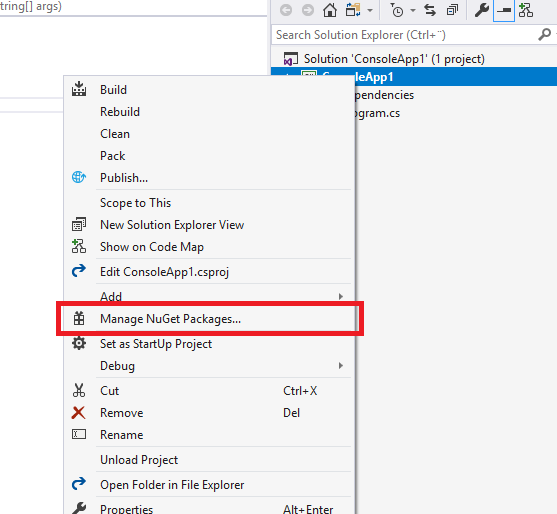
This means that [Cryptolens.Licensing](https://help.cryptolens.io/web-api/skm-client-api) library was not included into the project. It can be easily added using **NuGet packager manager**, which you can find by right clicking on the project:
If you are
If your clients are able to visit `app.cryptolens.io` and `api.cryptolens.io` in Microsoft Edge but unable to activate the application, the issue could be both that they are using a proxy, connect to Active directory or that their IT department has blocked TLS of certain versions.
To fix these issues, we recommend to:
1. Update to the latest version of the SDK.
2. If you run a version of .NET Framework prior to .NET Framework 4.7, we recommend to manually specify which TLS should be used. Before any call to the API (for instance, Key.Activate performs an API call), we recommend to add the following line:
```
System.Net.ServicePointManager.SecurityProtocol = SecurityProtocolType.Tls12
```
Ideally, you should try to pick the highest available TLS version, but it is important to also test that such TLS version is supported in the .NET Framework vesion that you use.
If possible, the best approach is to run the latest version of .NET Framework. If that is not possible, please use at least .NET Framework 4.7. In other cases, the workaround above can be used (i.e. manually specifying the TLS version).
Some customers have reported an error with the right version of Newtonsoft.Json not being found. It seems to be localized to those that target .NET Framework 4.8, and the following error is shown:
```
System.IO.FileLoadException: Could not load file or assembly 'Newtonsoft.Json, Version=11.0.0.0, Culture=neutral, PublicKeyToken=30ad4fe6b2a6aeed' or one of its dependencies. The located assembly's manifest definition does not match the assembly reference.
```
The error is thrown when a wrong version of Newtonsoft.Json is installed in the same project as Cryptolens.Licensing library. To fix this, you need to make sure that Newtonsoft.Json is uninstalled completely and then re-install Cryptolens.Licensing.
### Python
This error occurs when the timestamp for the expiration date received from the server exceeds the limit in Python. This typically occurs when the **Period** is set to a excessively large value, often to prevent the license from expiring.
While Cryptolens requires a period (defaulted to 30) during the creation of a new license, this does not mark the license as time-limited. You can learn more about it [here](https://help.cryptolens.io/web-interface/keys-that-dont-expire). In essence, a license is treated as time-limited by either enforcing this in the Python code (e.g. if F1=true, the license is time-limited and so we check the expiration date against the current date, to see that it is still valid) or on the server side. On the server side, you can, for example, set up a feature that will automatically block expired licenses. You can read more about it [here](https://help.cryptolens.io/faq/index#blocking-expired-licenses).
In sum, to solve this issue, you can either follow one of the methods described above or set the period to a smaller value.
This error is thrown when the urllib library (a built in library in Python that we use to send HTTP requests) is unable to locate the CA files on the client machine. From our experience, this error occurs exclusively on Macs where the Python environment is incorrectly installed.
To solve this temporarily for **testing purposes**, you could temporary disable SSL verifications as described in [here](https://github.com/Cryptolens/cryptolens-python#ssl-verification), however, we do not recommend this in a production scenario. Instead, a better solution is to fix the underlying issue preventing the Python environment from finding the CA files.
This can be accomplished in at least two ways:
**Using certifi**
Before calling any of the API methods (e.g. Key.activate), you can add the following code:
```python theme={null}
import certifi
os.environ['SSL_CERT_FILE'] = certifi.where()
```
Please note that this requires `certifi` package to be installed.
**Running a script in the Python environment**
An alternative is to run script in their environment that should fix the issue. You can read more about it in this thread: [#65](https://github.com/Cryptolens/cryptolens-python/issues/65)
**Summary**
The key takeaway is that it is better to address the issue with missing CA on the user side, since this issue will typically be user-specific. If that is not possible, you can use the code above to manually set the path to CA files. Although we have mentioned turning off SSL verification temporarily, it should not be used in production. `Key.activate` takes care of signature verification internally, but some other methods do not.
If you have customers who want to use a proxy server, we recommend enabling the following setting before calling any other API method, such as Key.Activate.
```python theme={null}
HelperMethods.proxy_experimental = True
```
This will ensure that the underlying HTTP library (urllib) used by Cryptolens Python SDK will use the proxy configured on the OS level. The goal is to make this default behaviour in future versions of the library, once enough feedback is collected.
SSL verification can temporarily be disabled by adding the line below before any call to Key.Activate.
```python theme={null}
HelperMethods.verify_SSL = False
```
The Cryptolens Python SDK will verify that the license information has not changed since it left the server using your RSA Public Key. However, we recommend to keep this value unchanged.
### C++
How errors are reported in the C++ library is described in the `README.md` file, which is also available [here](/libraries/cpp). If you are on a Unix based system, you can find a summary of all curl errors [here](/libraries/cpp/libcurl-errors).