> ## Documentation Index
> Fetch the complete documentation index at: https://help.cryptolens.io/llms.txt
> Use this file to discover all available pages before exploring further.
# Offline verification
> An example of how to verify/activate licenses without access to the internet. In the end of the tutorial, an example is shown on how to to create a license file, aka activation file or certificate. Such a file can be used by your clients to verify a license offline.
Although Cryptolens is a web-based service, we can still use it to protect applications that have no direct access to the internet (eg. air-gapped devices). This is especially useful if you plan to sell your software to larger enterprises.
You can find example projects [here](https://github.com/Cryptolens/Examples/tree/master/offline-verification).
If you prefer to watch a video, please check out [this post](https://cryptolens.io/2024/07/offline-license-verifications/). You can also find the notes used in the video tutorial on [this page](https://help.cryptolens.io/content/offline-verification.pdf).
## Idea
To verify licenses without internet access, Cryptolens uses public-key cryptography to sign each response that is sent to your application. You can think of each of these responses as a **certificate** or **license file**.
> The reason why we had to include your RSA public key in the [Key Verification](https://help.cryptolens.io/examples/key-verification) tutorial was to verify the signature provided by Cryptolens.
So, to be able to verify licenses offline, all you have to do is to provide your customers with this response/certificate. There are many different ways of setting this up, which we have outlined below:
* **Key verification once or periodically** - the easiest way of delivering this **certificate** is to require your users to perform [verification](https://help.cryptolens.io/examples/key-verification) once (and then keep using a cached version of the certificate) or to [verify](https://help.cryptolens.io/examples/key-verification) the license key periodically (eg. you try to verify the license each time the application starts and if it fails you use the cached certificate, provided it has not expired).
* **Using USB stick** - if your customers want to use your application on an [air-gapped](https://en.wikipedia.org/wiki/Air_gap_\(networking\)) device, you can deliver the certificate on a USB stick or by other means. Once your software sees this file, it will know that it is a valid license.
## Implementation
We have outlined two examples with detailed code examples:
* [Periodic key verification](https://help.cryptolens.io/examples/offline-verification#periodic-key-verification)
* [Example code](https://help.cryptolens.io/examples/offline-verification#example-code)
* [How it works](https://help.cryptolens.io/examples/offline-verification#how-it-works)
* [Remarks](https://help.cryptolens.io/examples/offline-verification#remarks)
* [USB stick (air-gapped)](https://help.cryptolens.io/examples/offline-verification#usb-stick-air-gapped)
* [Obtaining the license file / certificate](https://help.cryptolens.io/examples/offline-verification#obtaining-the-license-file--certificate)
* [Example code](https://help.cryptolens.io/examples/offline-verification#example-code-1)
### Periodic Key Verification
If you have already used the code in the [Key Verification](https://help.cryptolens.io/examples/key-verification) tutorial, you only need to add few lines of code to get it to work. The additional code that has to be added is shown below (we will explain how it works later in the tutorial):
**Note:** The value `3` passed as a parameter to `HasValidSignature` (in .NET) or `LoadFromString` (in Java) is used to specify the expiration date of the license file. In this case, users can only be offline for at most 3 days until they need to reconnect again.
#### Example code
```c# C# theme={null}
// ...
if (result == null || result.Result == ResultType.Error ||
!result.LicenseKey.HasValidSignature(RSAPubKey).IsValid())
{
// an error occurred or the key is invalid or it cannot be activated
// (eg. the limit of activated devices was achieved)
// -------------------new code starts -------------------
// we will try to check for a cached response/certificate
var licensefile = new LicenseKey();
if (licensefile.LoadFromFile("licensefile")
.HasValidSignature(RSAPubKey, 3)
.IsValid())
{
Console.WriteLine("The license is valid!");
}
else
{
Console.WriteLine("The license does not work.");
}
// -------------------new code ends ---------------------
}
else
{
// everything went fine if we are here!
Console.WriteLine("The license is valid!");
// -------------------new code starts -------------------
// saving a copy of the response/certificate
result.LicenseKey.SaveToFile("licensefile");
// -------------------new code ends ---------------------
}
```
```VB.NET VB.NET theme={null}
' ...
If result Is Nothing OrElse result.Result = ResultType.[Error] OrElse
Not result.LicenseKey.HasValidSignature(RSAPubKey).IsValid Then
' an error occurred or the key is invalid or it cannot be activated
' (eg. the limit of activated devices was achieved)
' -------------------New code starts -------------------
' we will try to check for a cached response/certificate
Dim licensefile As New LicenseKey()
If licensefile.LoadFromFile("licensefile").HasValidSignature(RSAPubKey, 3).IsValid() Then
Console.WriteLine("The license is valid!")
Else
Console.WriteLine("The license does not work.")
End If
' -------------------new code ends ---------------------
Else
' everything went fine if we are here!
Console.WriteLine("The license is valid!")
' -------------------New code starts -------------------
' saving a copy of the response/certificate
result.LicenseKey.SaveToFile("licensefile")
' -------------------New code ends ---------------------
End If
```
```java Java theme={null}
// ...
String currentMachineId = "test"; // usually you can call Helpers.GetMachineCode() to obtain this value. Other platforms, such as Android, require a different identifier.
if (license == null || !Helpers.IsOnRightMachine(license, currentMachineId)) {
// an error occurred or the key is invalid or it cannot be activated
// (eg. the limit of activated devices was achieved)
// -------------------new code starts -------------------
// we will try to check for a cached response/certificate
String contents = "";
try {
contents = new String(Files.readAllBytes(Paths.get("licensefile.skm")));
} catch (IOException e) {
e.printStackTrace();
return;
}
LicenseKey licenseFile = LicenseKey.LoadFromString(RSAPubKey, contents, 3);
if(licenseFile != null && Helpers.IsOnRightMachine(licenseFile, currentMachineId)) {
System.out.println("Offline mode");
System.out.println("The license is valid!");
System.out.println("It will expire: " + licenseFile.Expires);
} else {
System.out.println("The license does not work.");
}
// -------------------new code ends ---------------------
} else {
System.out.println("The license is valid!");
System.out.println("It will expire: " + license.Expires);
// -------------------new code starts -------------------
// saving a copy of the response/certificate
try {
PrintWriter pw = new PrintWriter("licensefile.skm");
pw.println(license.SaveAsString());
pw.close();
} catch (FileNotFoundException e) {
e.printStackTrace();
}
// -------------------new code ends ---------------------
}
```
#### How it works
The code examples above will always try to access Cryptolens to check a license key. If a request to Cryptolens would fail, we check for an **cached** version of the response/certificate and that it has **\*not expired** (eg. the last successful access was at most 3 days ago).
#### Remarks
The examples use methods `SaveToFile`and `LoadFromFile`, which are useful abstractions so that you do need to worry about serialization and storage. In some cases, it can be useful to store the `LicenseKey` in some other way. In that case, you just to need serialize the `LicenseKey` object. You can also use [settings variables](https://help.cryptolens.io/web-api/dotnet/v401#storing-a-license-key-in-a-file).
Note, you can perform the verification once with Cryptolens and then keep using the cached license file. We don’t recommend this though. It’s better to have a longer expiration date on the cached certificates instead.
### USB stick (air-gapped)
In order to check a license key on an [air-gapped device](https://en.wikipedia.org/wiki/Air_gap_\(networking\)), we need to first load the certificate and then verify it. In the example code, we also pass in `365` as a parameter to `HasValidSignature` (in .NET) or `LoadFromString` (in Java). This is used to ensure that users need to update the license file becomes invalid in 365 days, requiring the users to obtain a new license file.
Note, on an air-gapped device, it’s important to check that the certificate is locked to to that device (aka machine code locking), which is why we have included `IsOnRightMachine()` call.
#### Obtaining the license file / certificate
The license file can be obtained in a variety of ways. In the end, a license file/certificate is just the response from the Key.Activate or GetKey method. We have listed three ways to obtain such a file:
* **Activation Forms** is a page hosted by Cryptolens that allows your clients to activate a device by providing a license key and the machine code. You can read more about them [here](/feature/activation-form/index).
* **Dashboard** can be used to download a license file. It can be done by navigating to the product page, and clicking on the yellow button next to the license key. A new window will open where you can either activate a new machine or download license file without activating (using *Download activation file* link).
* **API** can also be used to activate a new machine or obtain the license file. For example, you could call Key.Activate or Key.GetKey on your end, save the license key to file (using the built in methods) and then send this file to your client.
Note: if you plan to activate many machines on customer site, please check out the [following guide](https://github.com/Cryptolens/admin-tools/tree/master/manual-activation) that provides scripts and other tools to help your larger clients to generate a list of machines to activate.
#### Example code
For the code below, we need to ensure that:
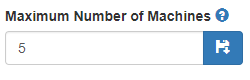
* **machine code locking** is enabled. You can change this for existing keys by selecting the key and providing the value in the box below (remember to save):
* **activation forms** or another way of obtaining the certificate is present (which we discussed in *Obtaining the license file / certificate*). Activation Forms are easy to set up and can be done [here](https://app.cryptolens.io/ActivationForms). All your customer has to do is to enter the license key and machine code in the form and then move the file into the same directory as your application.
Note, the name of the files returned by the activation form can differ, so it’s better to ask the customer about the name of it or ask them to rename the file obtained from the activation with the one hardcoded in the code below:
```c# C# theme={null}
var RSAPubKey = "{enter the RSA Public key here}";
var licensefile = new LicenseKey().LoadFromFile("ActivationFile20180606.skm");
if(licensefile.HasValidSignature(RSAPubKey, 365).IsOnRightMachine(SKGL.SKM.getSHA256).IsValid())
{
// if you have multiple products, make sure the license file has correct product id.
//if(licensefile.ProductId != 123)
//{
// Console.WriteLine("This license file is not for this product.");
// return;
//}
Console.WriteLine("License verification successful.");
}
else
{
Console.WriteLine("The license file is not valid or has expired.");
Console.WriteLine("Please obtain a new one here: https://app.cryptolens.io/Form/A/onp4cDAc/222");
Console.WriteLine("Your machine code is: " + Helpers.GetMachineCode());
}
```
```VB.NET VB.NET theme={null}
Dim RSAPubKey = "{enter the RSA Public key here}"
Dim licensefile = New LicenseKey().LoadFromFile("ActivationFile20180606.skm")
If (licensefile.HasValidSignature(RSAPubKey, 365).IsOnRightMachine(AddressOf SKGL.SKM.getSHA256).IsValid()) Then
' if you have multiple products, make sure the license file has correct product id.
'If (licensefile.ProductId <> 123) Then
' Console.WriteLine("This license file is not for this product.")
' Return
'End If
Console.WriteLine("License verification successful.")
Else
Console.WriteLine("The license file is not valid or has expired.")
Console.WriteLine("Please obtain a new one here: https://app.cryptolens.io/Form/A/onp4cDAc/222")
Console.WriteLine("Your machine code is: " + Helpers.GetMachineCode())
End If
```
```java Java theme={null}
String currentMachineId = "test"; // usually you can call Helpers.GetMachineCode() to obtain this value. Other platforms, such as Android, require a different identifier.
String contents = "";
try {
contents = new String(Files.readAllBytes(Paths.get("ActivationFile20180606.skm")));
} catch (IOException e) {
e.printStackTrace();
return;
}
LicenseKey licenseFile = LicenseKey.LoadFromString(RSAPubKey, contents, 365);
if(licenseFile != null && Helpers.IsOnRightMachine(licenseFile, currentMachineId)) {
// if you have multiple products, make sure the license file has correct product id.
/*if(licenseFile.ProductId != 123) {
System.out.println("This license file is not for this product.");
return;
}*/
System.out.println("License verification successful.");
System.out.println("The license is valid!");
System.out.println("It will expire: " + licenseFile.Expires);
} else {
System.out.println("The license file is not valid or has expired.")
System.out.println("Please obtain a new one here: https://app.cryptolens.io/Form/A/onp4cDAc/222")
System.out.println("Your machine code is: " + currentMachineId)
}
```
 * **API** can also be used to activate a new machine or obtain the license file. For example, you could call Key.Activate or Key.GetKey on your end, save the license key to file (using the built in methods) and then send this file to your client.
 * **activation forms** or another way of obtaining the certificate is present (which we discussed in *Obtaining the license file / certificate*). Activation Forms are easy to set up and can be done [here](https://app.cryptolens.io/ActivationForms). All your customer has to do is to enter the license key and machine code in the form and then move the file into the same directory as your application.