> ## Documentation Index
> Fetch the complete documentation index at: https://help.cryptolens.io/llms.txt
> Use this file to discover all available pages before exploring further.
# .NET desktop application
> An older tutorial on how to integrate Cryptolens licensing into a desktop application in .NET
This is an old tutorial that we have kept that shows how you can implement basic license verification in a .NET application. We recommend to review our [Getting Started Guide](/getting-started/getting-started-guide) and refer to our [key verification](/examples/key-verification) tutorial for production ready examples.
Our aim of this tutorial is to guide you through, step by step, the process of implementing Cryptolens into your application. We’ll assume that you’ve developed a .NET application and use [Visual Studio 2013](https://www.visualstudio.com/en-us/products/visual-studio-community-vs.aspx). If you are using a different language, we recommend to check out [this page](https://help.cryptolens.io/web-api/skm-client-api).
> If you want to jump straight into the code, please check out the [key verification](/examples/key-verification) tutorial.
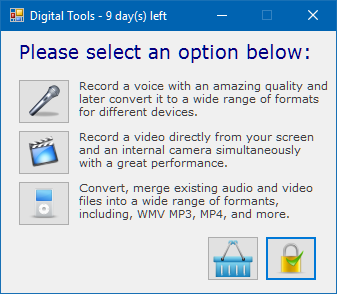 > Our application will have three features (voice, audio and converter), and the ability to license these as a ‘subscription’ (time-limited) or ‘perpetual’ (unlimited time). We will check the license key when we have an Internet connection. If we’re offline, we will use the saved license file. The user will be able to use the software 90 days offline at most.
## Cryptolens .NET Client
Now we can start using all of the power of the Cryptolens Client API.
The easiest way to get Cryptolens Client API is through NuGet in Visual Studio.
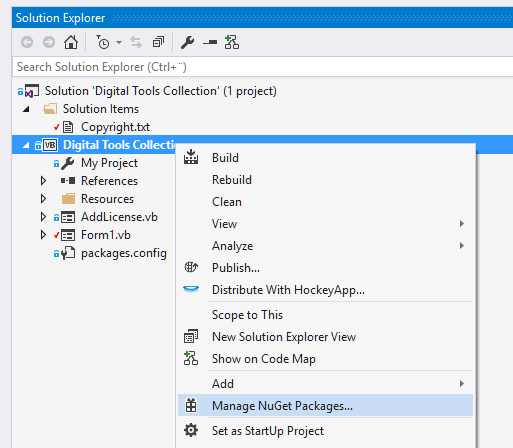
1. Go to the solution explorer and right click on the project (not the solution).
2. Click on `Manage NuGet Packages...`
> Our application will have three features (voice, audio and converter), and the ability to license these as a ‘subscription’ (time-limited) or ‘perpetual’ (unlimited time). We will check the license key when we have an Internet connection. If we’re offline, we will use the saved license file. The user will be able to use the software 90 days offline at most.
## Cryptolens .NET Client
Now we can start using all of the power of the Cryptolens Client API.
The easiest way to get Cryptolens Client API is through NuGet in Visual Studio.
1. Go to the solution explorer and right click on the project (not the solution).
2. Click on `Manage NuGet Packages...`
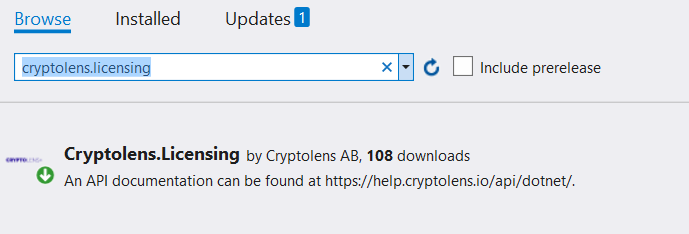
 Now, type `Cryptolens.Licensing` into the Browse tab, select `SKM Client API` and install it.
 ## Adding Code
We almost have all the pieces in place to get a working licensing solution. We will cover the code in this section and look at how to retrieve **access tokens** and **public key (RSA)** later.
Our application will have two places where we will need to insert the code:
* During license key registration - the first time the user inserts a license key
* During application start - to check for existing license on launch
You can download the source code [here](https://github.com/Cryptolens/Examples/tree/master/Digital%20Tools%20Collection).
> Note, you can find more detailed examples of .NET [here](https://help.cryptolens.io/examples/) and other environments [here](https://help.cryptolens.io/web-api/skm-client-api). Please don’t hesitate to contact us should you have any questions.
### License Key Registration
```
' The code below is based on https://help.cryptolens.io/examples/key-verification.
Dim token = "{access token with permission to access the activate method}"
Dim RSAPubKey = "{Your RSA Public key}"
Dim keyStr = TextBox1.Text.Replace(" ", "")
Dim result = Key.Activate(token:=token, parameters:=New ActivateModel() With {
.Key = keyStr,
.ProductId = 3349,
.Sign = True,
.MachineCode = Helpers.GetMachineCode()
})
If result Is Nothing OrElse result.Result = ResultType.[Error] OrElse
Not result.LicenseKey.HasValidSignature(RSAPubKey).IsValid Then
' an error occurred or the key is invalid or it cannot be activated
' (eg. the limit of activated devices was achieved)
MsgBox("Unable to access the license server or the key is wrong.")
Else
' everything went fine if we are here!
Dim license = result.LicenseKey
Form1.Button1.Enabled = license.HasFeature(1).IsValid() ' either we have feature1 or not.
Form1.Button2.Enabled = license.HasFeature(2).IsValid() ' either we have feature2 or not.
Form1.Button4.Enabled = license.HasFeature(3).IsValid() ' either we have feature3 or not.
Form1.Text = "Digital Tools"
If license.HasFeature(4).HasNotExpired().IsValid() Then
' feature 1 is a time limited, so we check that it has not expired.
Form1.Text = "Digital Tools - " + license.DaysLeft().ToString() + " day(s) left"
ElseIf license.HasNotFeature(4).IsValid() Then
Else
MsgBox("Your license has expired and cannot be used.")
nolicense()
End If
license.SaveToFile()
End If
```
This code will retrieve all the license data (using `Refresh`) and enable buttons depending on the features in the license. Features 3-5 indicate a certain functionality whereas Feature 1 is used to indicate a time-limit (in case it’s a subscription). Once we have a valid license, we will save it locally (it will be signed by SKM, because **sign** is set to true in `Refresh`).
### Application Start
```
NoLicense()
' The code below is based on https://help.cryptolens.io/examples/key-verification.
Dim license = New LicenseKey().LoadFromFile()
Dim publicKey = "{Your RSA Public key}"
Dim token = "{access token with permission to access the activate method}"
If license IsNot Nothing Then
Dim result = Key.Activate(token:=token, parameters:=New ActivateModel() With {
.Key = license.Key,
.ProductId = 3349,
.Sign = True,
.MachineCode = Helpers.GetMachineCode()
})
' either we get a fresh copy of the license or we use the existing one (given it is no more than 90 days old)
If (result.Result <> ResultType.Error And result.LicenseKey.HasValidSignature(publicKey).IsValid) Or license.HasValidSignature(publicKey, 90).IsValid() Then
Button1.Enabled = license.HasFeature(1).IsValid() ' either we have feature1 or not.
Button2.Enabled = license.HasFeature(2).IsValid() ' either we have feature2 or not.
Button4.Enabled = license.HasFeature(3).IsValid() ' either we have feature3 or not.
Text = "Digital Tools"
If license.HasFeature(4).HasNotExpired().IsValid() Then
' feature 1 is a time limited, so we check that it has not expired.
Text = "Digital Tools - " + license.DaysLeft().ToString() + " day(s) left"
ElseIf license.HasNotFeature(4).IsValid() Then
' not time limited.
Else
MsgBox("Your license has expired and cannot be used.")
NoLicense()
End If
license.SaveToFile()
Else
MsgBox("Your license has expired and cannot be used.")
End If
Else
' no license found. you could tell the user to provide a license key.
End If
```
When your application launches, we will try to get a new version of the license key, in case it has been modified. If we don’t have internet access, we will use the local copy as long as 90 days have not passed since it was retrieved. Everything else is the same as when the user registers the license for the first time.
## Access Tokens
In all of the code examples, you will see variables such as `token` or `auth`. They refer to an [access token](https://app.cryptolens.io/docs/api/v3/auth).
The idea behind access tokens is to allow you to:
* identify yourself with Cryptolens (authentication) - let Cryptolens know that you are you
* make sure only desired permission is given to something (authorization) - eg. method scope, product, etc.
Using an access token, you can specify the methods you want to be able to call, the product you want to use, the license key, and optionally feature you want to change. You can read more about them [here](https://app.cryptolens.io/docs/api/v3/auth).
### Creating a new Access Token
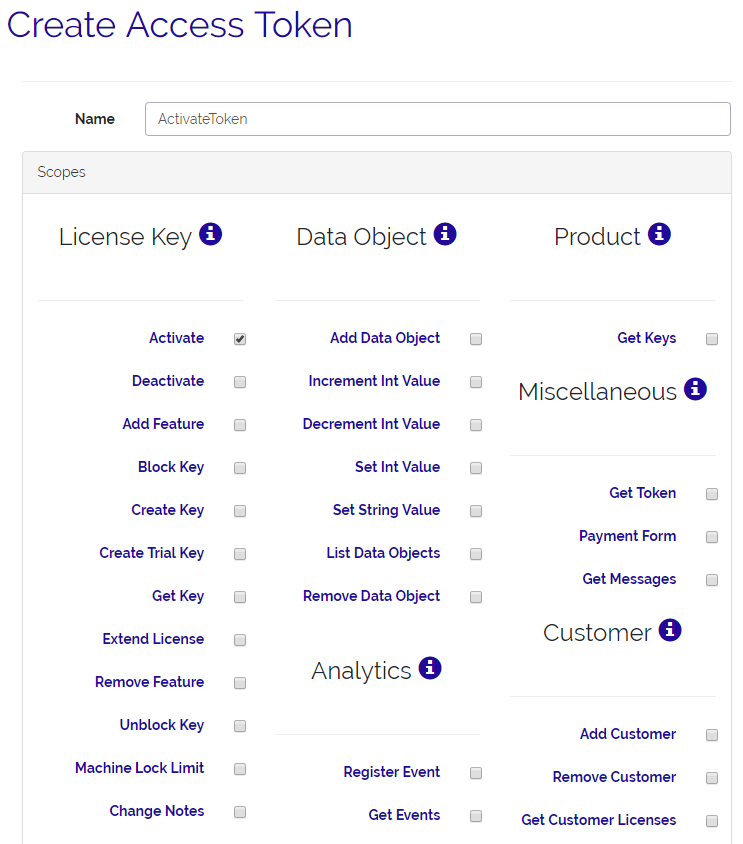
In order to create an access token with the permission required by the previous example:
1. Go to ‘Your account name’ (right corner) > ‘Access Token’.
2. Click on ‘Create new Access Token’. You will now be on [this page](https://app.cryptolens.io/User/AccessToken#/newtoken).
3. Enter a name, such as “ActivateToken”.
4. Check the ‘Activate’ box (under LicenseKey)
5. Select the ‘Product Lock’ to be the name of your application.
6. Press ‘Create an Access Token’.
7. Copy the access token and replace our token with yours.
### Example
## Adding Code
We almost have all the pieces in place to get a working licensing solution. We will cover the code in this section and look at how to retrieve **access tokens** and **public key (RSA)** later.
Our application will have two places where we will need to insert the code:
* During license key registration - the first time the user inserts a license key
* During application start - to check for existing license on launch
You can download the source code [here](https://github.com/Cryptolens/Examples/tree/master/Digital%20Tools%20Collection).
> Note, you can find more detailed examples of .NET [here](https://help.cryptolens.io/examples/) and other environments [here](https://help.cryptolens.io/web-api/skm-client-api). Please don’t hesitate to contact us should you have any questions.
### License Key Registration
```
' The code below is based on https://help.cryptolens.io/examples/key-verification.
Dim token = "{access token with permission to access the activate method}"
Dim RSAPubKey = "{Your RSA Public key}"
Dim keyStr = TextBox1.Text.Replace(" ", "")
Dim result = Key.Activate(token:=token, parameters:=New ActivateModel() With {
.Key = keyStr,
.ProductId = 3349,
.Sign = True,
.MachineCode = Helpers.GetMachineCode()
})
If result Is Nothing OrElse result.Result = ResultType.[Error] OrElse
Not result.LicenseKey.HasValidSignature(RSAPubKey).IsValid Then
' an error occurred or the key is invalid or it cannot be activated
' (eg. the limit of activated devices was achieved)
MsgBox("Unable to access the license server or the key is wrong.")
Else
' everything went fine if we are here!
Dim license = result.LicenseKey
Form1.Button1.Enabled = license.HasFeature(1).IsValid() ' either we have feature1 or not.
Form1.Button2.Enabled = license.HasFeature(2).IsValid() ' either we have feature2 or not.
Form1.Button4.Enabled = license.HasFeature(3).IsValid() ' either we have feature3 or not.
Form1.Text = "Digital Tools"
If license.HasFeature(4).HasNotExpired().IsValid() Then
' feature 1 is a time limited, so we check that it has not expired.
Form1.Text = "Digital Tools - " + license.DaysLeft().ToString() + " day(s) left"
ElseIf license.HasNotFeature(4).IsValid() Then
Else
MsgBox("Your license has expired and cannot be used.")
nolicense()
End If
license.SaveToFile()
End If
```
This code will retrieve all the license data (using `Refresh`) and enable buttons depending on the features in the license. Features 3-5 indicate a certain functionality whereas Feature 1 is used to indicate a time-limit (in case it’s a subscription). Once we have a valid license, we will save it locally (it will be signed by SKM, because **sign** is set to true in `Refresh`).
### Application Start
```
NoLicense()
' The code below is based on https://help.cryptolens.io/examples/key-verification.
Dim license = New LicenseKey().LoadFromFile()
Dim publicKey = "{Your RSA Public key}"
Dim token = "{access token with permission to access the activate method}"
If license IsNot Nothing Then
Dim result = Key.Activate(token:=token, parameters:=New ActivateModel() With {
.Key = license.Key,
.ProductId = 3349,
.Sign = True,
.MachineCode = Helpers.GetMachineCode()
})
' either we get a fresh copy of the license or we use the existing one (given it is no more than 90 days old)
If (result.Result <> ResultType.Error And result.LicenseKey.HasValidSignature(publicKey).IsValid) Or license.HasValidSignature(publicKey, 90).IsValid() Then
Button1.Enabled = license.HasFeature(1).IsValid() ' either we have feature1 or not.
Button2.Enabled = license.HasFeature(2).IsValid() ' either we have feature2 or not.
Button4.Enabled = license.HasFeature(3).IsValid() ' either we have feature3 or not.
Text = "Digital Tools"
If license.HasFeature(4).HasNotExpired().IsValid() Then
' feature 1 is a time limited, so we check that it has not expired.
Text = "Digital Tools - " + license.DaysLeft().ToString() + " day(s) left"
ElseIf license.HasNotFeature(4).IsValid() Then
' not time limited.
Else
MsgBox("Your license has expired and cannot be used.")
NoLicense()
End If
license.SaveToFile()
Else
MsgBox("Your license has expired and cannot be used.")
End If
Else
' no license found. you could tell the user to provide a license key.
End If
```
When your application launches, we will try to get a new version of the license key, in case it has been modified. If we don’t have internet access, we will use the local copy as long as 90 days have not passed since it was retrieved. Everything else is the same as when the user registers the license for the first time.
## Access Tokens
In all of the code examples, you will see variables such as `token` or `auth`. They refer to an [access token](https://app.cryptolens.io/docs/api/v3/auth).
The idea behind access tokens is to allow you to:
* identify yourself with Cryptolens (authentication) - let Cryptolens know that you are you
* make sure only desired permission is given to something (authorization) - eg. method scope, product, etc.
Using an access token, you can specify the methods you want to be able to call, the product you want to use, the license key, and optionally feature you want to change. You can read more about them [here](https://app.cryptolens.io/docs/api/v3/auth).
### Creating a new Access Token
In order to create an access token with the permission required by the previous example:
1. Go to ‘Your account name’ (right corner) > ‘Access Token’.
2. Click on ‘Create new Access Token’. You will now be on [this page](https://app.cryptolens.io/User/AccessToken#/newtoken).
3. Enter a name, such as “ActivateToken”.
4. Check the ‘Activate’ box (under LicenseKey)
5. Select the ‘Product Lock’ to be the name of your application.
6. Press ‘Create an Access Token’.
7. Copy the access token and replace our token with yours.
### Example
 ## Public Key
In many cases, you will store license key data locally on your customers’ device, partly to allow your customers to use the application offline. At the same time, you don’t want them to be able to modify the license key data (for example, the number of features they are entitled to and expiration date).
Therefore, Cryptolens will sign the license key (if you explicitly tell it to do so) with your **private key**. The **public key** will allow your application to check that the license key file hasn’t been modified since it was by Cryptolens.
The **public key** won’t allow them to re-sign the data, only to validate it.
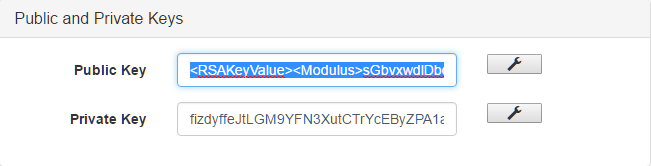
### Finding your Public Key
In order to find your unique public key:
1. In the menu in the right corner (with your name), select ‘Security Settings’.
2. Copy the entire public key and replace it with yours (in the `publicKey` variable).
## Public Key
In many cases, you will store license key data locally on your customers’ device, partly to allow your customers to use the application offline. At the same time, you don’t want them to be able to modify the license key data (for example, the number of features they are entitled to and expiration date).
Therefore, Cryptolens will sign the license key (if you explicitly tell it to do so) with your **private key**. The **public key** will allow your application to check that the license key file hasn’t been modified since it was by Cryptolens.
The **public key** won’t allow them to re-sign the data, only to validate it.
### Finding your Public Key
In order to find your unique public key:
1. In the menu in the right corner (with your name), select ‘Security Settings’.
2. Copy the entire public key and replace it with yours (in the `publicKey` variable).
 ## Create a Key
We’re now ready to test the code using your account.
1. Select the product from the [list](https://app.cryptolens.io/Product).
2. Click on ‘Create a new Key’.
3. Check features 3,4,5.
4. Optionally, if you want to have a time limit, check feature 1 too.
In case you kept the code as it is (without replacing the token and pubkey with yours), you can test the following:
* `IWXAZ-FVMOD-KBZQU-DKUFW` - all features in one years since this tutorial was written
* `IYVOO-JCWXQ-LCRBI-ZAIQZ` - all features but the recorder with no time constraint.
### Done!
You have successfully completed this tutorial! If you would have any questions, please get in touch us with us using chatbox available on each page.
Good luck!
## Next steps
You’ve now implemented Cryptolens into your application. Here’s what’s next:
1. [Get started with payment forms](/payments/payment-forms)
2. [Learn more about possible licensing models](/licensing-models/index)
3. [Understand GDPR and its implications](/security/gdpr)
## Create a Key
We’re now ready to test the code using your account.
1. Select the product from the [list](https://app.cryptolens.io/Product).
2. Click on ‘Create a new Key’.
3. Check features 3,4,5.
4. Optionally, if you want to have a time limit, check feature 1 too.
In case you kept the code as it is (without replacing the token and pubkey with yours), you can test the following:
* `IWXAZ-FVMOD-KBZQU-DKUFW` - all features in one years since this tutorial was written
* `IYVOO-JCWXQ-LCRBI-ZAIQZ` - all features but the recorder with no time constraint.
### Done!
You have successfully completed this tutorial! If you would have any questions, please get in touch us with us using chatbox available on each page.
Good luck!
## Next steps
You’ve now implemented Cryptolens into your application. Here’s what’s next:
1. [Get started with payment forms](/payments/payment-forms)
2. [Learn more about possible licensing models](/licensing-models/index)
3. [Understand GDPR and its implications](/security/gdpr)