> ## Documentation Index
> Fetch the complete documentation index at: https://help.cryptolens.io/llms.txt
> Use this file to discover all available pages before exploring further.
# Create a Product
> Create a new product step by step.
Each application you deploy can be thought of as a .
A product is a collection of license keys.
In order to create a new product:
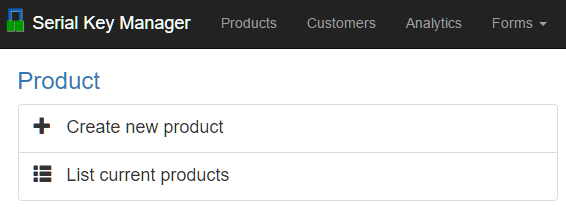
1. Click on 'create new product' on the [main page](https://app.cryptolens.io).
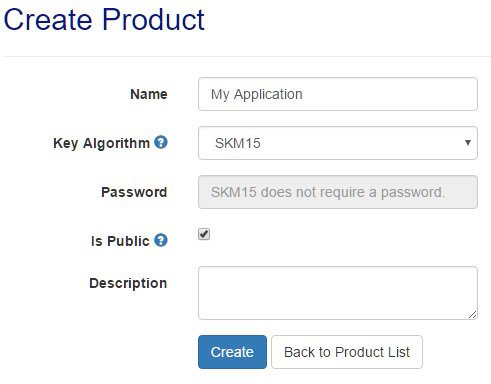
2. On the create new [product page](https://app.cryptolens.io/Product/Create) enter the name of your application and press 'Create'.
## Product Id
When you start implementing Cryptolens Client API into your code, you will need to provide
a `ProductId`, which is simply a number used to identify your product.
One of the ways to get the product id is to:
1. Go to the [product page](https://app.cryptolens.io/Product)
2. Select the product in the list.
3. The `product id` is located under the description of the product.
## Examples
### The main page
 ### The 'create new product' page
 ## Next
* [Add new access token](/getting-started/access-token)
## Next
* [Add new access token](/getting-started/access-token)